
Step 1: Log in eLearn
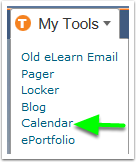
Step 2: Under My Tools, select the Calendar tool
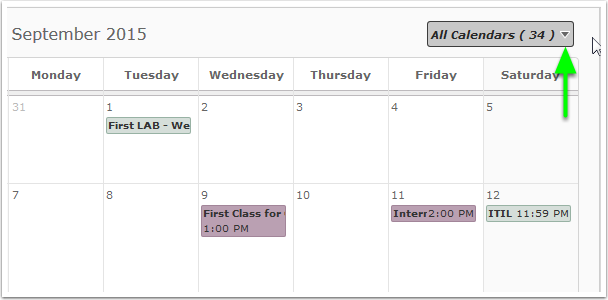
Step 3: Select the drop-down menu for "All Calendars"
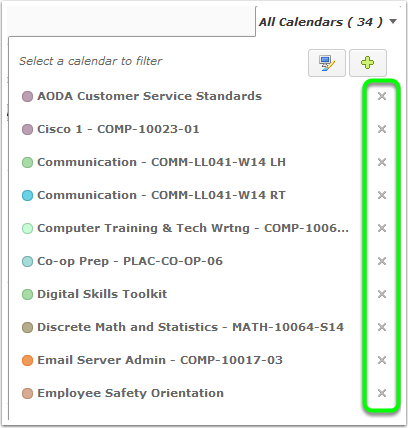
Step 4: Remove any unwanted calendars
Step 5: Click "Settings" in the menu bar

Step 6: Enable calendar feeds
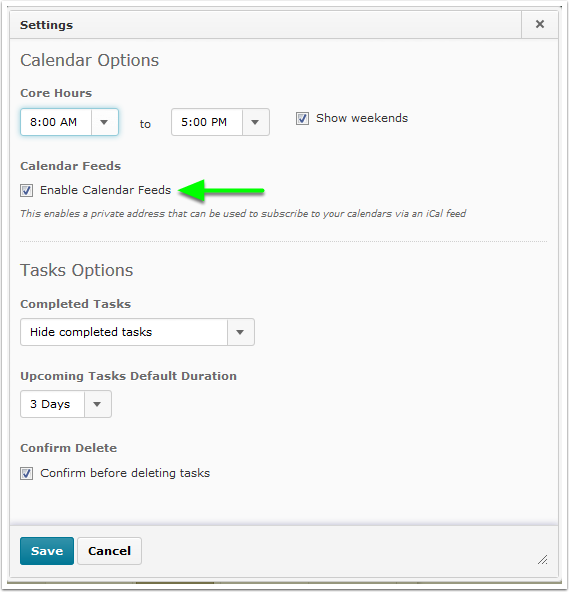
Step 7: Subscribe to your eLearn Calendar

Step 8: Copy your calendar
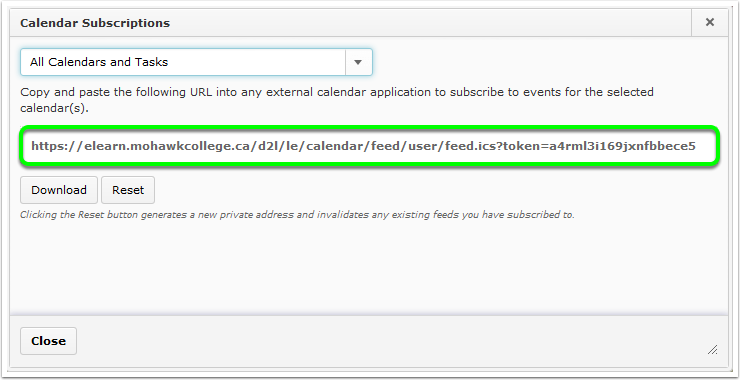
Step 9: Log in to Mohawk College Outlook email
Step 10: Click on the app launcher and then select the calendar tool
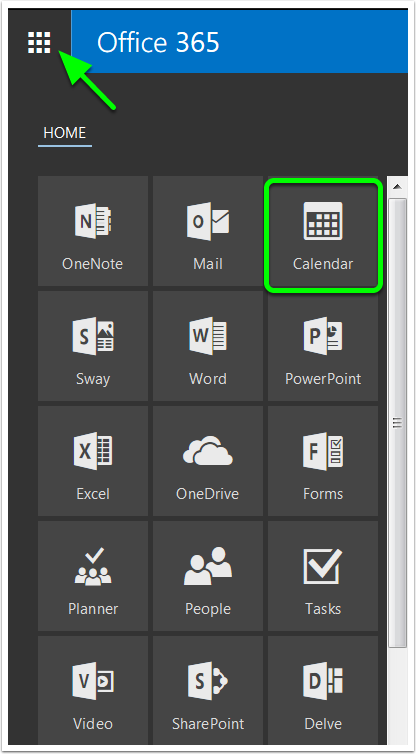
Step 11: Adding a calendar
Select the drop-down menu beside "New". Click "Add calendar" and then "From internet"
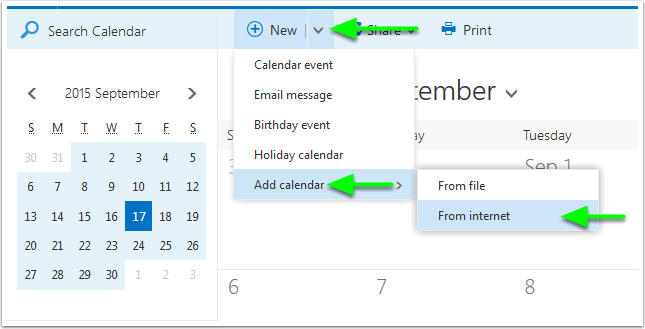
Step 12: Internet Calendar option
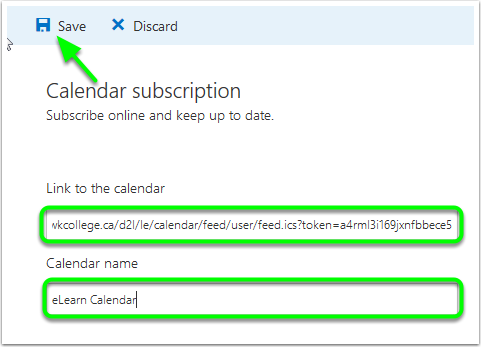
Paste the calendar subscription link you copied from eLearn into the highlighted "Link to calendar" field and give it a calendar name, click save.
Step 13: Your new calendar
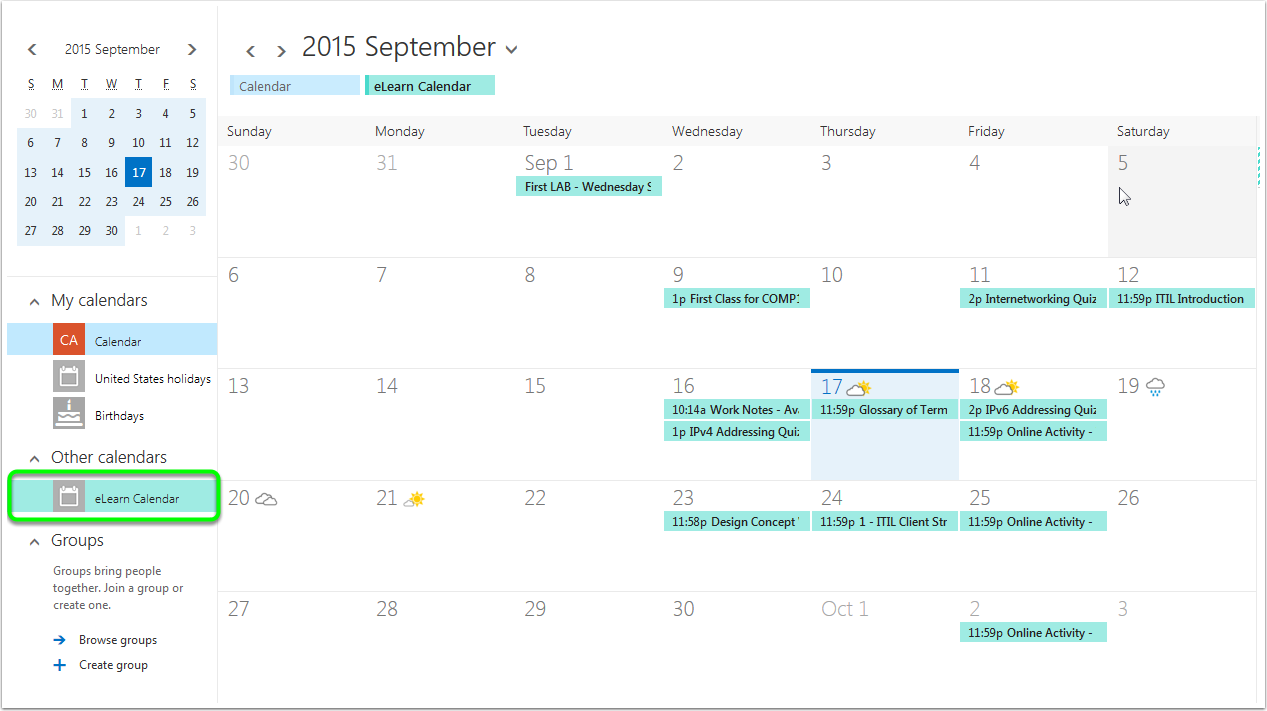
Your eLearn calendar can be found under "Other calendars". Click it to toggle it on/off.