

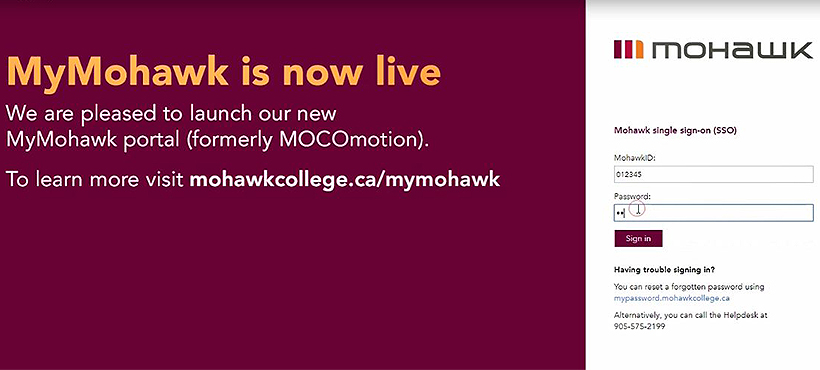
1. Login to MyMohawk.
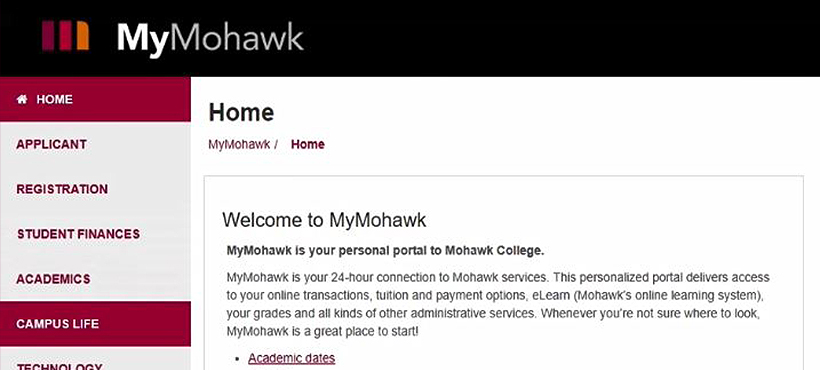
2. Click on the Campus Life Tab.
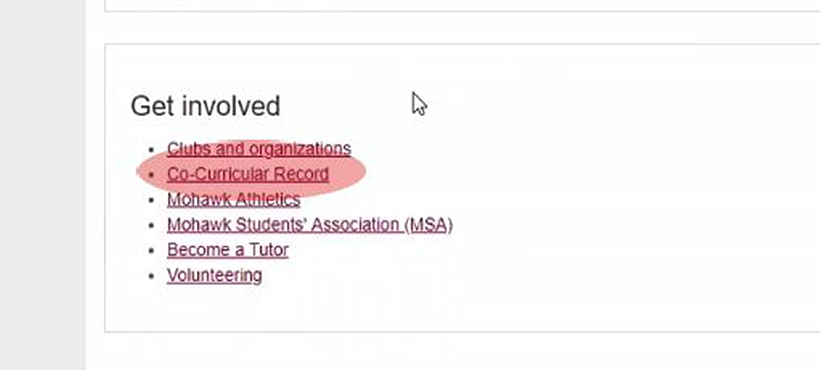
3. Scroll down to the “Get Involved” section and click on “Co-Curricular Record”.
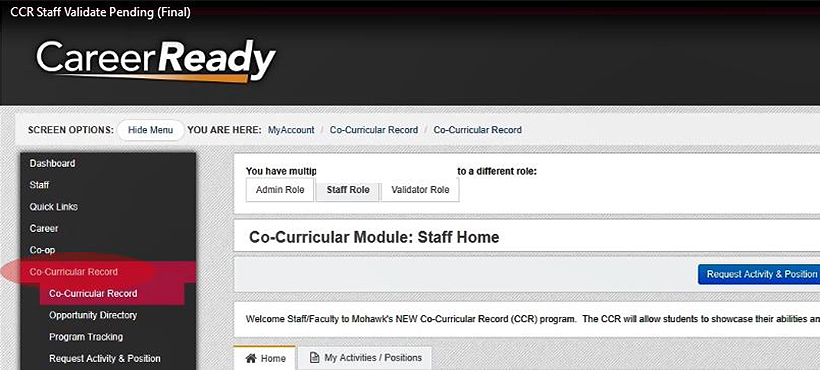
4. Click “Co-Curricular Record” in the side menu of the Career Ready portal.
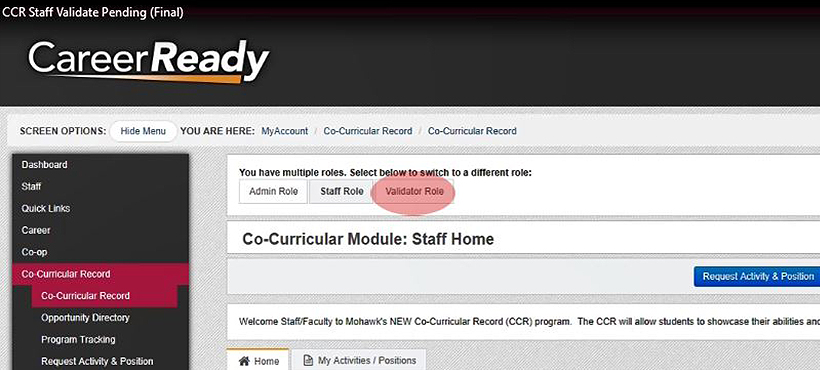
5. Ensure the “Validator Role” tab is selected at the top of the page.
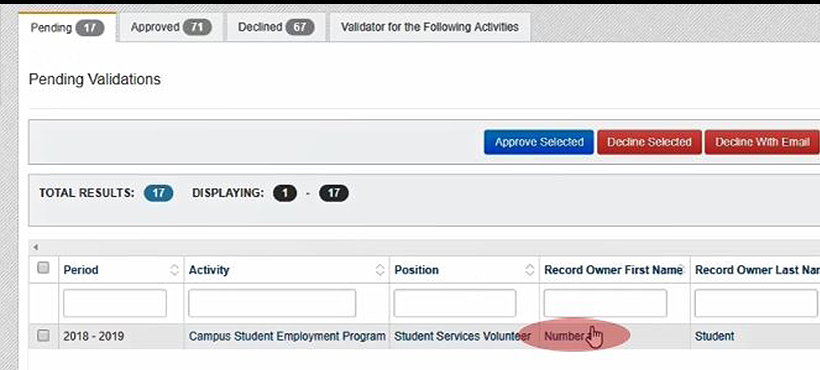
6. Click on the “Pending” tab to view the students who have entered their hours and select a student by clicking on their name.
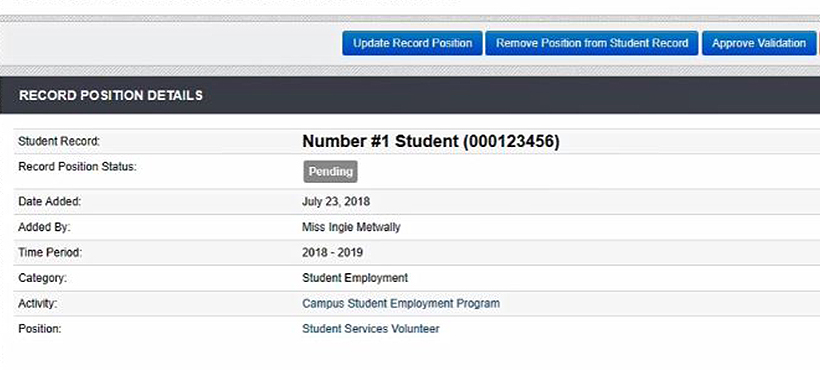
7. Review the student record position details to ensure all information is correct.
- Students must have between 2-5 achievements selected.
- Students must have a minimum of 5 hours entered (volunteer positions only).
- If you need to edit the hours entry information, select the pencil icon. Make the necessary corrections and hit “Save”.
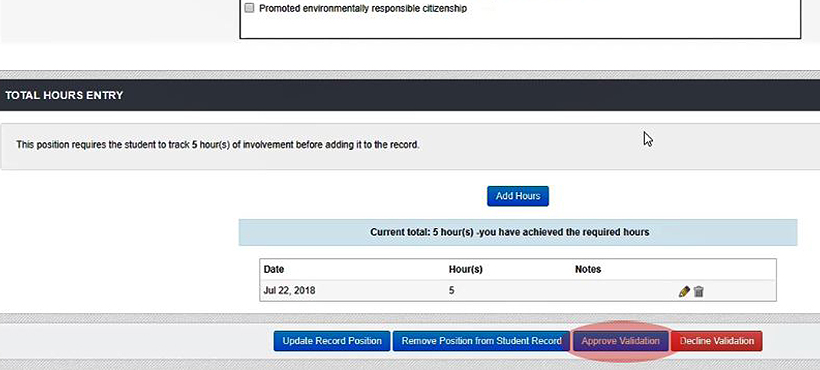
8. Click the blue “Approve Validation” button
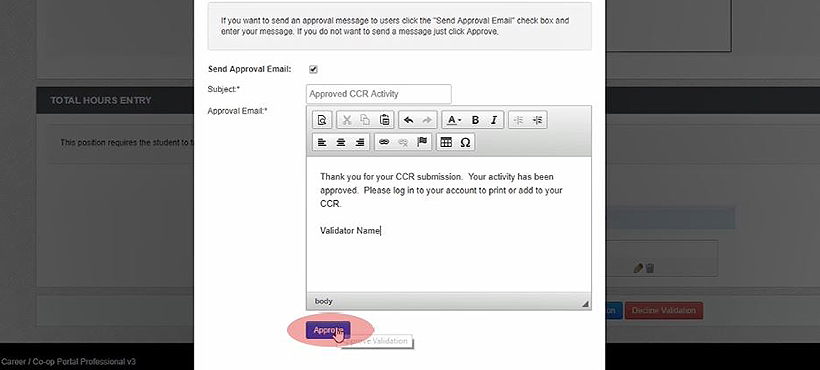
- An “Approve Validation” window will open. Select the “Send Approval Email” if you wish to notify the student that their position has been validated. Personalize the email by adding your name. Once complete, click on the blue “Approve” button.
- You will be directed back to that student’s Record Position Details screen, and see that the position has been approved.
- To continue validating other record positions, click the validator role at the top of your screen.
