
Classic Outlook vs New Outlook
Mohawk is transitioning to Microsoft Office 365 as part of our move to Windows 11. This FAQ will help you understand the differences between Classic Outlook and New Outlook. If you have questions, contact the IT Service Desk.
Classic Outlook App Icons

New Outlook App Icon![]()

New vs Classic Outlook Look and Feel
Q: What is "New Outlook" and how is it different from Classic Outlook?
”New” Outlook is a new email app designed to work natively with Microsoft 365. It features a cleaner, more simplified interface.
Classic Outlook is the traditional desktop app that’s familiar to most users with college-provided workstations.
New and Classic Outlook are separate apps. Both versions can be on your workstation at the same time. Compare you Outlook icon to the images at the top of the page to see which one you're opening.
Some capabilities you’re familiar with in Classic Outlook may not be available in New Outlook at the moment. Check out Getting Started with New Outlook for Windows from Microsoft.
Q: How do I know which version of Outlook I have?
See a guide from Microsoft: How to check your Outlook version.
If you have Classic Outlook:
- You may have a "Try the new Outlook" toggle switch in the upper-right corner of your Outlook window.
- Clicking the File menu covers your entire Outlook window and says Account Information in large text at the top.
If you have New Outlook:
- The File menu at the top-left no longer covers the whole Outlook window.
- Your Email, Calendar, and Contacts icons moved to the far-left edge of the window instead of the bottom-left corner.
- Clicking File > Settings show you a reorganized and searchable Settings menu.
- Icons in the ribbon along the top of the screen have a clean line style.
Q: Can I switch back to Classic Outlook?
Yes. Microsoft will begin transitioning users to New Outlook starting March 2027, but Classic Outlook will be available until April 2029.
To open Classic Outlook:
Click Start > type “Outlook” > right-click Outlook (Classic) > click Pin to Taskbar
Classic Outlook will now be pinned to your taskbar for quick access.
Note: The toggle switch to change between New Outlook and Classic Outlook has been removed. Use the Start menu to launch your desired version directly.
More information from Microsoft: Switch between New and Classic Outlook
Features & What's Different
Q: What features aren’t in New Outlook yet?
New Outlook is being updated frequently, but it may have some gaps compared to Classic Outlook.
Check Microsoft’s updated feature comparison for New and Classic Outlook for the feature you’re concerned with using. This page is updated as features change.
Some notable features as of April 2026: Drop files from Outlook into other apps is in development.
Q: Can I still schedule emails (delay send) in New Outlook?
Yes. When composing a message, select the dropdown arrow next to the Send button. Choose Schedule Send to pick a future date and time.
Q: Can I still save emails as .MSG files?
Yes. Right-click an email in your message list and select Save as > Save as MSG to save it locally.
Q: What happened to COM add-ins or third-party Outlook plugins?
New Outlook only supports web-based add-ins. If you rely on a specific third-party Outlook add-in, contact the IT Service Desk to investigate alternatives before switching.
Q: Are my email rules from Classic Outlook carried over?
Simple rules will be carried over to New Outlook. Complex or advanced rules may not transfer correctly, and rule import/export are not supported. You may need to recreate some rules manually in Settings > Mail > Rules.
Calendars and Meetings
Q: Can I propose a new meeting time when I receive an invite?
Yes. Open the meeting invitation, select Propose new time, choose a new time slot, and click Send. Note: this option is not available for recurring meetings.
Q: Why did a declined meeting disappear from my calendar?
Declining a meeting removes it from your calendar view. If you want it to remain visible, select Tentative instead of Decline.
Q: What is the "Follow" option on a meeting invite?
Follow is a new RSVP option in New Outlook. It lets you stay informed about a meeting without committing to attend. You’ll receive the recap, transcript, and shared files after it ends. Select Follow on any meeting invitation to use this option.
Q: Where do I find meeting recaps and transcripts after a Teams meeting?
After a Teams meeting ends, participants automatically receive meeting artifacts (recap, transcript, recording, and shared files) linked directly in the Calendar event. Open the calendar event to access them.
Q: How do I add a shared calendar?
- Select Mail from the navigation pane in New Outlook.
- In the Folder pane, right-click your account name > Add shared folder or mailbox
- Type the name of the mailbox you want to access: e.g. [DeptName]@mohawkcollege.ca
For more information see: About shared mailboxes, folders, and calendars in Outlook from Microsoft.
Notifications, Autoreplies, and Signatures
Q: Can I receive calendar reminders even when Outlook is closed?
Yes. To enable notifications:
- In Outlook, go to File > Settings > General > Notifications. Expand Notifications in Outlook and check "Send notifications when Outlook is closed."
- In Windows Settings > Apps > Installed Apps > Outlook > Advanced Options. Change "Let this app run in background" to Always.
Q: How do I set an Out of Office / Autoreply in New Outlook?
Go to Settings > Mail > Automatic Replies, toggle it on, and type your message.
This functionality is the same as Classic Outlook, just in a different location.
Q: How do I add or change my email signature?
Go to Settings > Accounts > Signatures. You can create, edit, and set default signatures for new emails and replies/forwards.
Offline Access & Performance
Q: Can I use New Outlook offline?
Full offline features equal to Classic Outlook are not yet available. New Outlook has partial offline features. You can view, write, flag, move, and delete emails stored on your device. The offline sync window is up to 30 days of email.
Q: New Outlook feels slow and uses a lot of resources. Is that normal?
New Outlook uses more memory than Classic Outlook. If you notice the app is sluggish:
- Close Outlook in the Task Manager > End Task. Restart the app.
- Ensure Windows and Microsoft apps are fully up to date.
- If the issue, contact the IT Service Desk
Classic Outlook Instructions
Add a Shared Mailbox to your Outlook Profile
How to Add a Shared Mailbox
Warning:After adding a shared mailbox, you may not see mail items right away. Larger mailboxes will take longer for Outlook to synchronize.
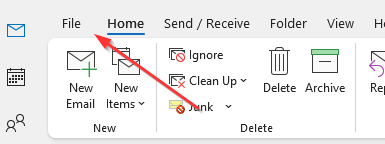
- Click File, then click Add Account

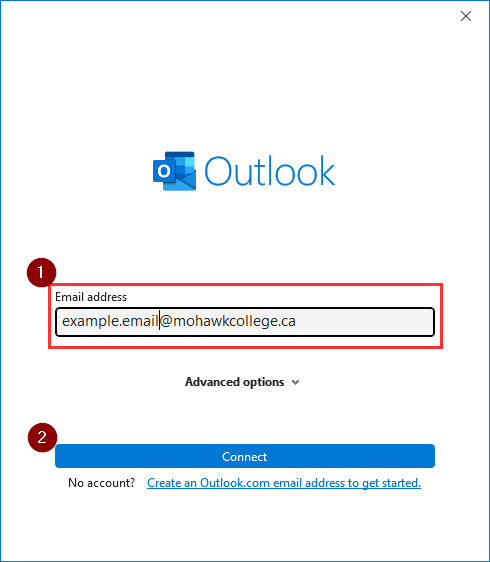
- Enter the full email address of the mailbox you wish to add, then click Connect
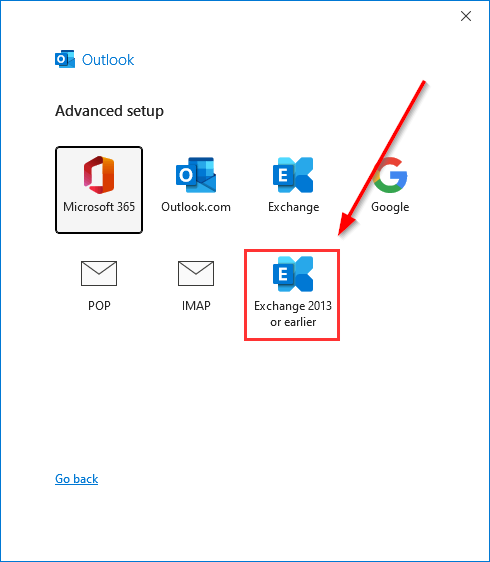
- Select Exchange 2013 or earlier
- Outlook will say the account has been added successfully and will tell you to restart outlook. Fully exit and restart Outlook.
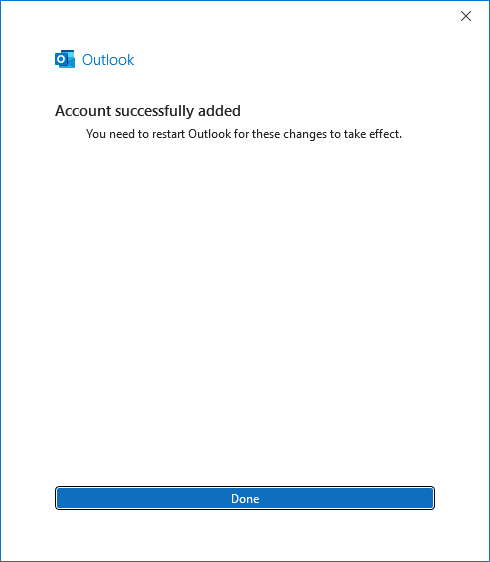
- After restarting outlook you will find the mailbox added to the navigation pane on the left.

Note: Don’t panic if you do not see mail items immediately. It may take some time for Outlook to synchronize mail items depending on the volume in the mailbox.
Add a Shared Calendar to your Outlook Profile
How to Add a Shared Calendar
Warning:After adding a shared calendar, you may not see calendar items right away. Larger calendars will take longer for Outlook to synchronize.
- Go to the calendar view in Outlook
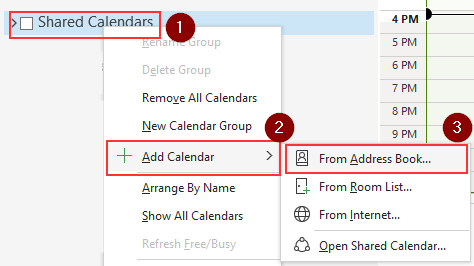
- In the left-side calendar navigation pane, right-click Shared Calendars, then click Add Calendar and From Address Book
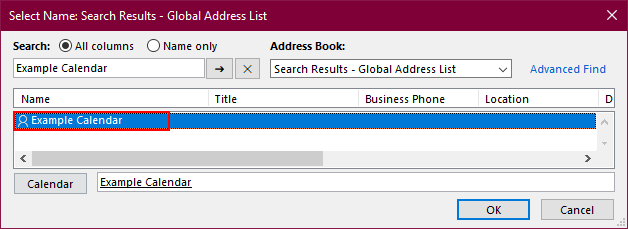
- In the Address Book dropdown click Global Address List

- In the search box, enter the name of the calendar you want to add and press enter.

- In the search results, double-click the calendar to select it. It will be added to the calendar bar at the bottom of the search window.
- Repeat step 4 and 5 if there are more shared calendars you want to add.
- When your desired calendars are added to the list, click OK
- Fully exit and restart Outlook.
- Your added calendars will appear in the Shared Calendar list

Warning: Don’t panic if you do not see calendar items immediately. It may take some time for Outlook to synchronize calendar items depending on the volume of items contained in the calendar.
Add Outlook to your Mobile Device
Setup the Outlook App for Android
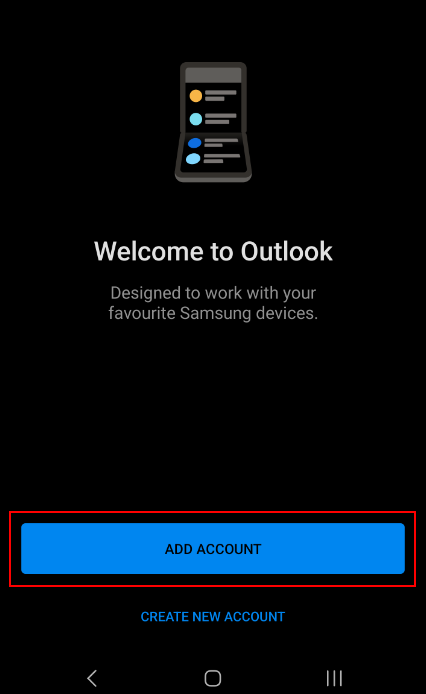
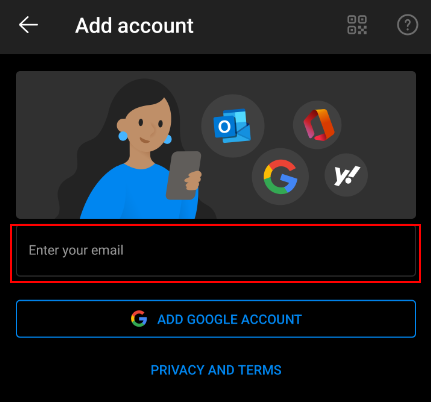
- Open the Outlook app and tap Add account.
- Enter your email address, firstname.lastname [at] mohawkcollege.ca (firstname[dot]lastname[at]mohawkcollege[dot]ca) and tap Continue.
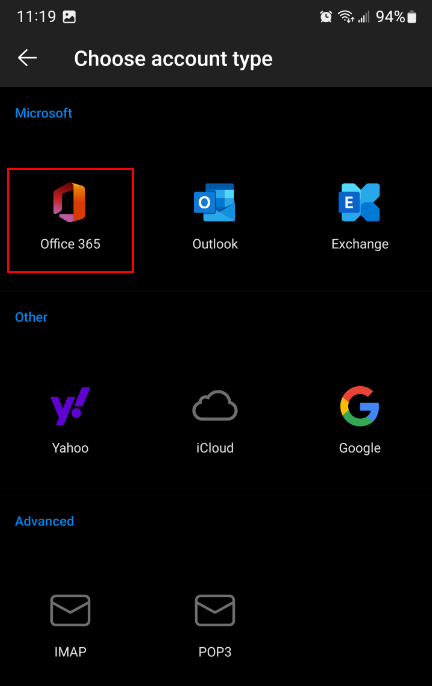
- On the next screen, tap Office365.
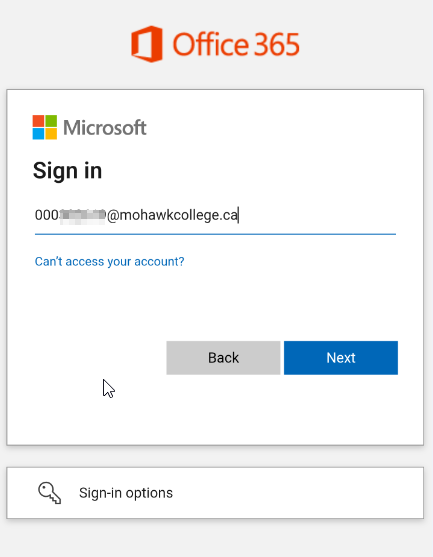
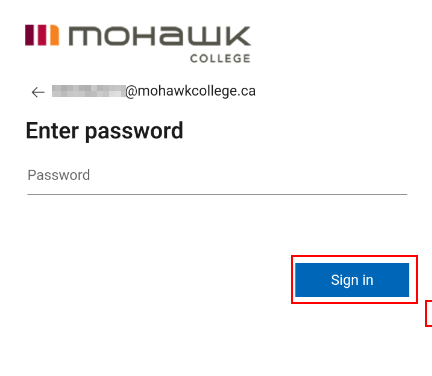
- Enter your username EmployeeID [at] mohawkcollege.ca (EmployeeID[at]mohawkcollege[dot]ca) (e.g. 000101060 [at] mohawkcollege.ca (000101060[at]mohawkcollege[dot]ca)) and password. Tap Sign In.
- You may need to answer a multi-factor authentication prompt to continue.
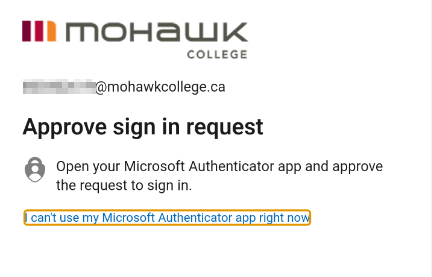
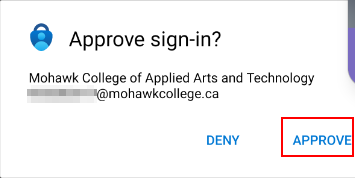
- When asked if you want to add another account, tap Maybe Later
Setup the Outlook App for iOS
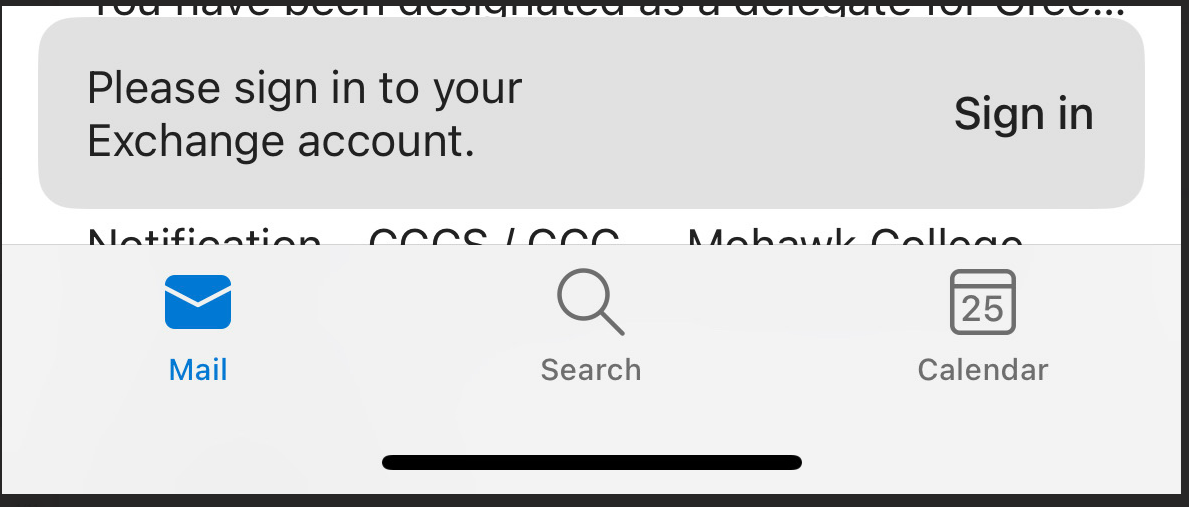
- Open the Outlook app and tap the # icon at the top of your inbox.
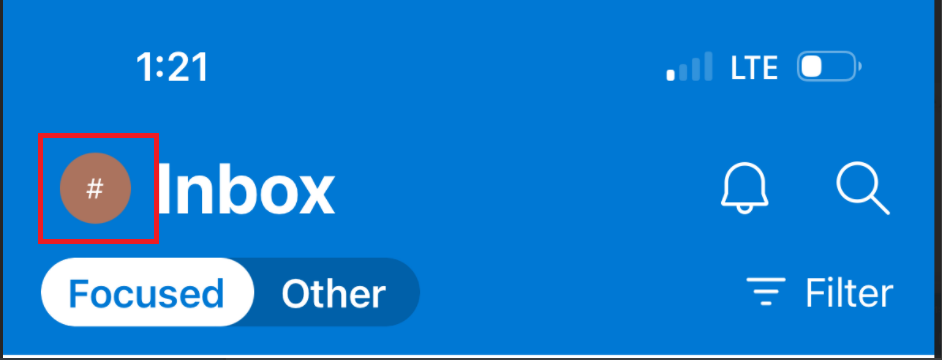
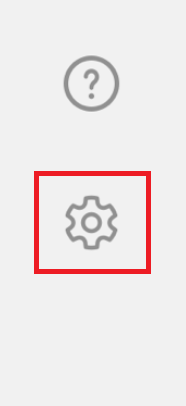
- At the bottom of the screen, tap the gear (settings) icon.
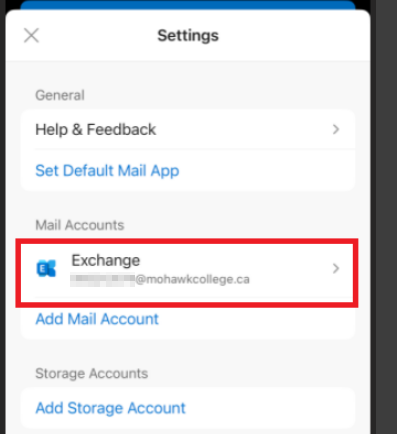
- Tap your Exchange email account, then tap Delete Account.

- Restart the Outlook app, then tap Add account.
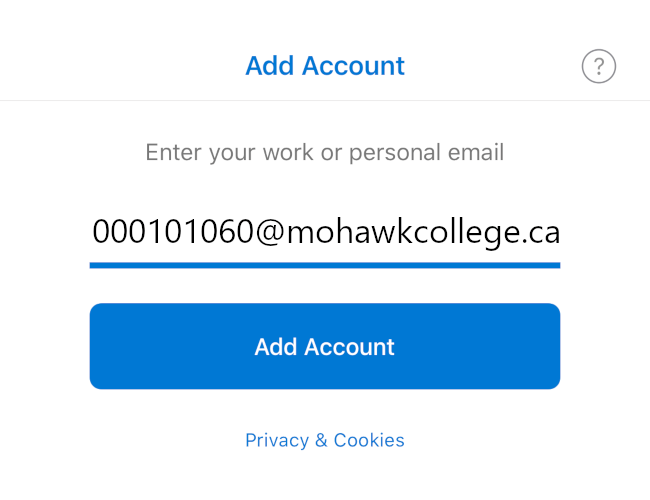
- Enter your username EmployeeID [at] mohawkcollege.ca (EmployeeID[at]mohawkcollege[dot]ca) (e.g. 000101060 [at] mohawkcollege.ca (000101060[at]mohawkcollege[dot]ca)). Tap Add Account.
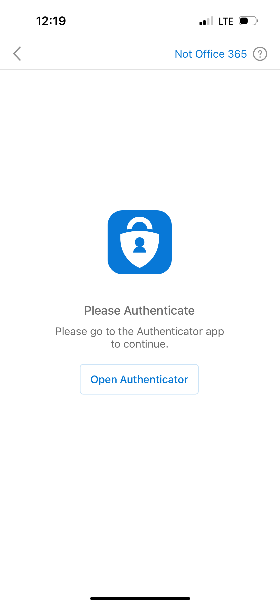
- Accept the multi-factor authentication prompt.
- Enter your username EmployeeID [at] mohawkcollege.ca (EmployeeID[at]mohawkcollege[dot]ca) (e.g. 000101060 [at] mohawkcollege.ca (000101060[at]mohawkcollege[dot]ca)) and password. Tap Sign In

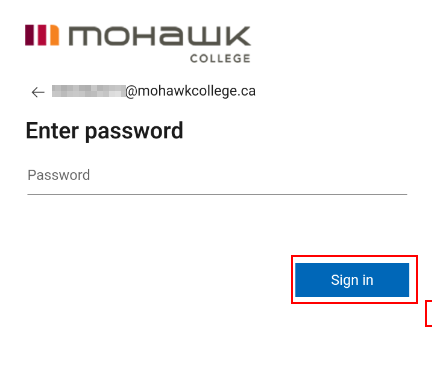
- When completed, the app will ask if you want to add another account. Tap Maybe Later

Add your Email to iOS' Default Mail App
- Tap the Mail app.

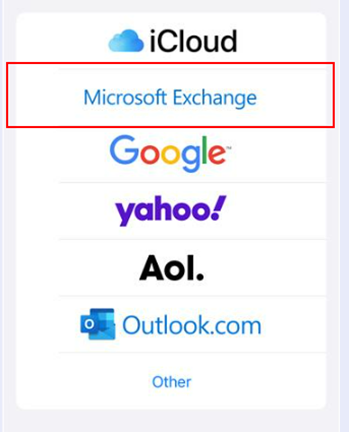
- Tap Microsoft Exchange.
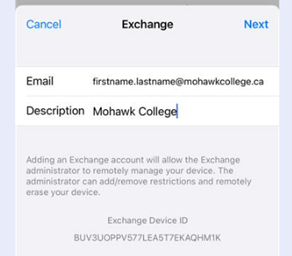
- Enter your email address (firstname.lastname) and the description Mohawk College
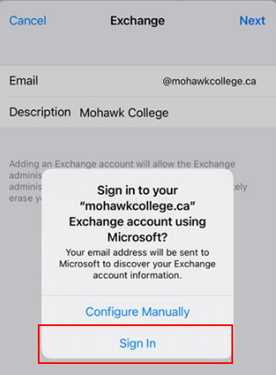
- A prompt will appear. Tap Sign In.
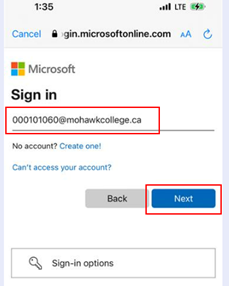
- Enter your 9-digit MohawkID [at] mohawkcollege.ca (MohawkID[at]mohawkcollege[dot]ca) (e.g. 000101060 [at] mohawkcollege.ca (000101060[at]mohawkcollege[dot]ca)), then tap Next.
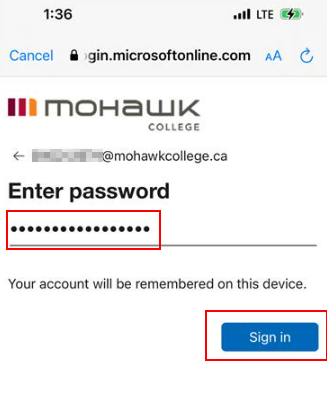
- Enter your password, then tap Sign In.
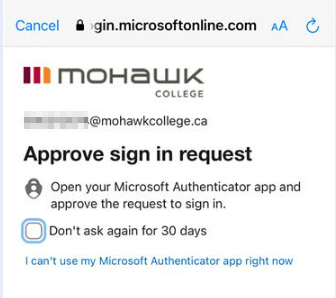
- You must authorize the login using your Authenticator app. Follow the prompts to approve the login request.
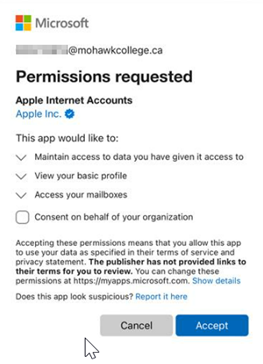
- Accept the permission request.
Open your Email on Different Devices
Employee Email in Outlook on College Computers
Outlook is automatically configured when you sign in with your employee number. If you're experiencing a problem with Outlook at your workstation, contact the IT Service Desk.
Employee Email through your web browser
- Go to outlook.office.com (new window). Have your authenticator ready.
- Enter your MohawkID [at] mohawkcollege.ca (MohawkID[at]mohawkcollege[dot]ca) (e.g. 000101060 [at] mohawkcollege.ca (000101060[at]mohawkcollege[dot]ca))
- Enter your password. If asked, respond to the prompt in your authenticator.