
During the opt-in phase, compatible staff computers can be upgraded to Windows 11 at a time that's convenient for you.
If you experience a problem during the upgrade, or wish to request a wipe-and-reload upgrade performed by a Service Desk technician, contact the IT Service Desk.
How to Self-Upgrade to Windows 11
Before you Begin
The upgrade can take from 1 to 3 hours to complete, depending on your internet speed. Complete the checklist to ensure you're ready to upgrade.
- Your computer is plugged into power. Do not upgrade on battery.
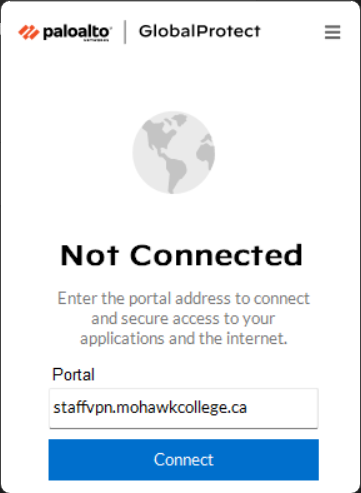
- You're connected to a reliable internet connection.
- Your VPN connection is disconnected.
- Your have 50 GB or more free space on your C drive.
To check, click Start > File Explorer > This PC. Look at OSDisk (C:) and ensure more than 50 GB is free.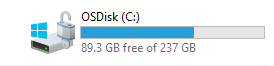
Start the Upgrade
Do not turn off or restart your computer during the upgrade. It can take from 1 to 3 hours to complete, depending on your internet speed.
- Click Start and type the word “software” to locate the Software Center app.

- Click Operating Systems.
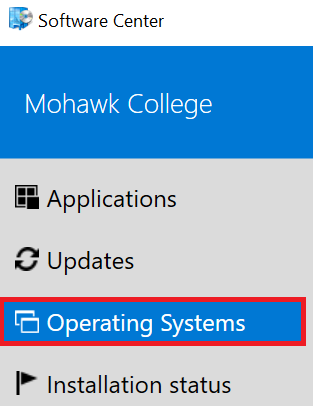
- Click Windows 11 In-Place Upgrade. If you do not see this option, your device may not support Windows 11. Please contact the Service Desk.
- Click Install and read the warning message.
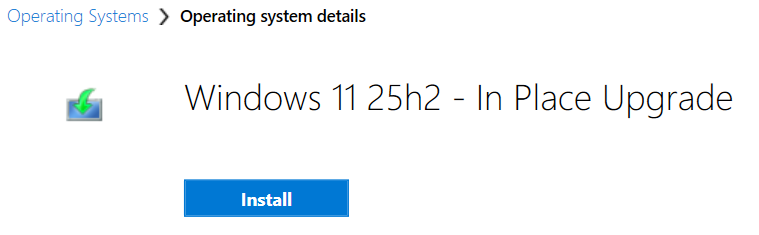
- Wait for the update to complete. Your computer will restart multiple times.
- When the update is finished, you will see a new message screen before you log in.