
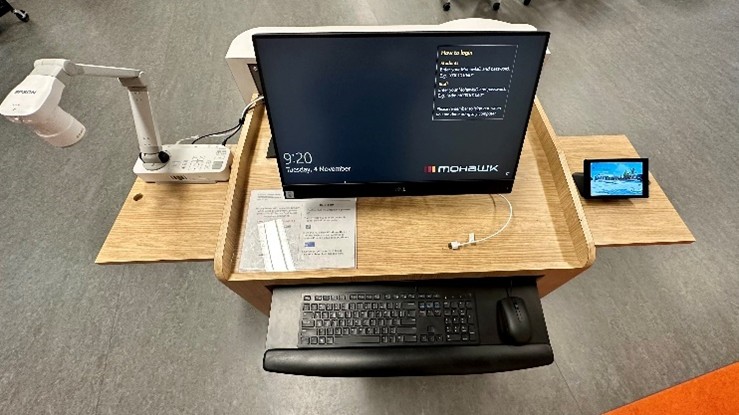
- Press the power button on the all-in-one computer located on the Podium.
- Press Ctrl+Alt+Delete keys to access the login screen.
- Log in using your MohawkID and password
Note: You no longer need to have the Colocation cabinet open for audio to play. Only open the cabinet if you require the lapel microphone. There are also no remote controls for projectors – All control is done through the Touch Panel.
Located on the right-hand side of the podium, you will find the room's Control Panel.
If the room has not been used for an extended period of time, wake the panel by touching anywhere on the screen.
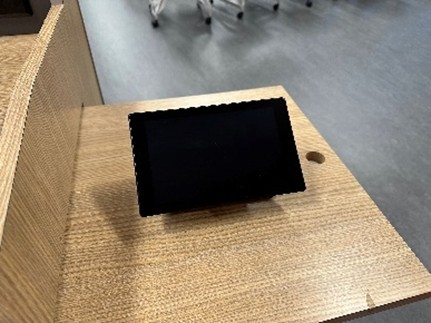
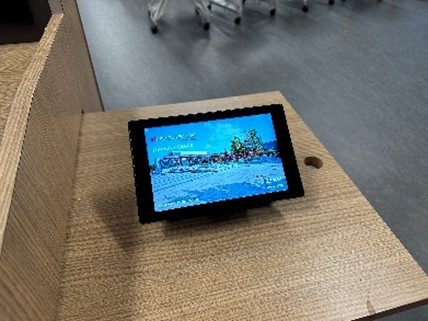
Once you see the displayed image, press anywhere to start. The system will take around 20 seconds to warm up.
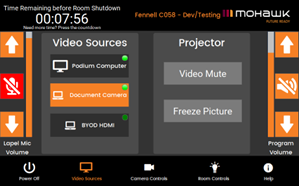
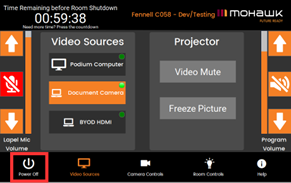
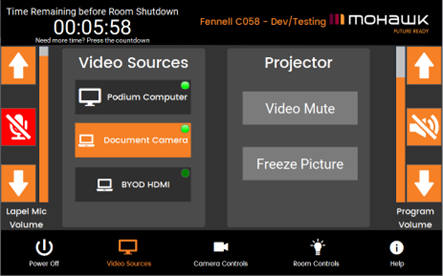
Video Sources
- Podium Computer – Use the Built-in PC at the Podium.
- Document Camera – Display physical documents or objects using the document camera.
- BYOD HDMI – Connect your laptop or device via HDMI.
Projector controls
- Video Mute – Temporarily blanks the screen
- Freeze Picture – Holds a still image of your device's screen
Audio Controls
- Lapel Mic Volume – Adjust with the orange arrows on the left side
- Device Volume – Adjust content audio (videos, calls, etc) with arrows on the right side
- Mic Mute – Tap the red microphone button to mute or unmute
The Room Timer system powers down the room automatically after a set period of time.
How to Adjust the Room Timer
After the system has completed its “Warm up” phase, look at the Top Left corner of the Touch Panel.
Tap the area labelled “Need more Time? Press the Countdown”
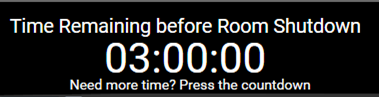
You’ll see a list of available times (e.g. 15 minutes, 30 minutes, 1 hour, up to 3 hours)
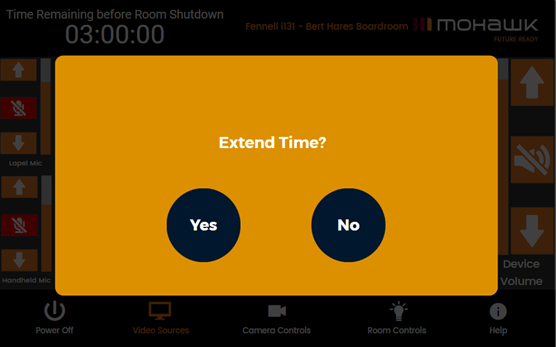
When 5 minutes remain, the control panel will display a warning. You can then choose to extend the time or allow the system to shut down automatically.
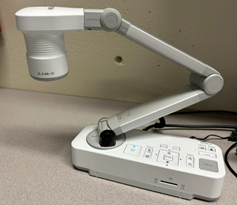
The document camera will display any item, including transparencies (with white paper placed underneath) that you place under the camera lens.
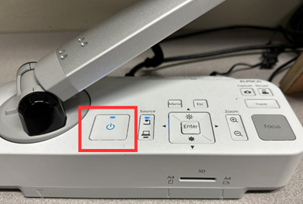
To use the document camera: turn the document camera on, then select “Document Camera” on the Touch Panel.
ELPDC21 Document Camera - The power button is on the top of the base.
Document Cameras in Presentation Rooms can project in the room and online (via Microsoft Teams) simultaneously
Lapel Volume – Microphone volume can be adjusted on the left-hand side of the Touch panel.
Program Volume on Touch Panel – Controls the Overall volume for the room. This includes the Microphone, All-in-one Podium PC, and any BYOD Devices connected.
Volume on Device – Remember that you can control the volume of the device on the device itself.
Lavalier Microphones are available and located in the Colocation cabinet.
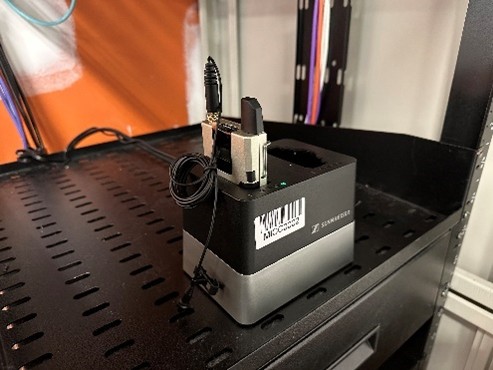
Retrieve the Pack and remove it from the Charging Cradle.
To power on: Press the Power button on the side until the Lav Pack lights up.
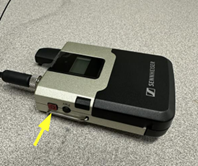
You can mute the Lav Pack with the switch on the top. When the device is muted the LED will turn yellow.
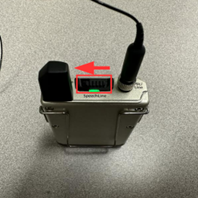
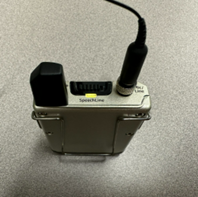
When you are finished with the microphone, turn it off and return it to the cradle for charging.
Network Cables are available to connect your BYOD Device to the Podium Panel. Cables are located in the Colocation Cabinet drawer.
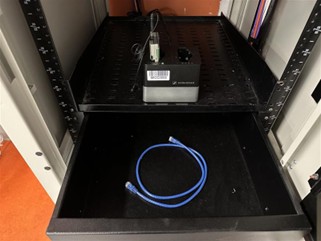
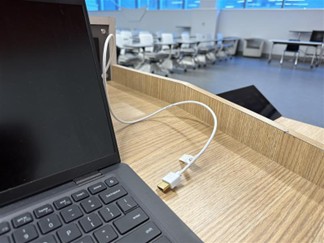
HDMI cables are available at the Podium to connect BYOD Devices. Once connected, make sure to select “BYOD HDMI” on the Touch Panel.
Before leaving the classroom, ensure the space is properly shut down for the next user.
Always log out of the computer to protect your personal information and prevent unauthorized access.
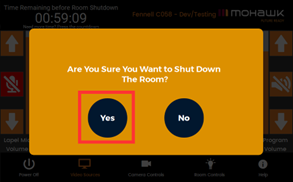
If the AV System is still active and there is time remaining on the Room timer, please press the “Power Off” button and confirm shutdown of the system.