

With the progression of the Banner Business Transformation project, the name Legacy Banner will be used to differentiate from the future platform Banner SaaS.
Accessing Legacy Banner
Legacy Banner Navigation Basics
Navigate Legacy Banner in your web browser
- Do not click your browser's back and forward buttons when using Legacy Banner. Only use menus to move between pages and forms.
- Always log out of Legacy Banner by clicking the lock icon before closing your browser window.
Search for an admin page
Enter the admin page name in the search box on the homepage, or click the Search icon in the left-side menu.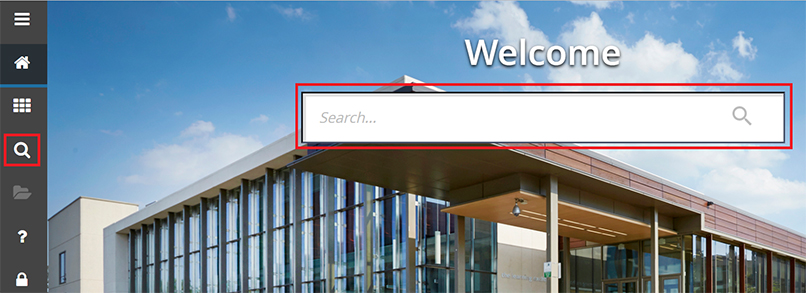
Navigate a form
The ... icon next to a field is a drop-down menu.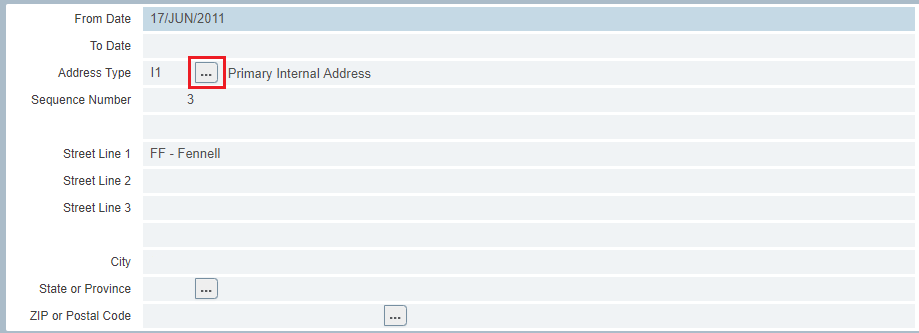
The Related icon at the top-right will show you a list of related admin pages.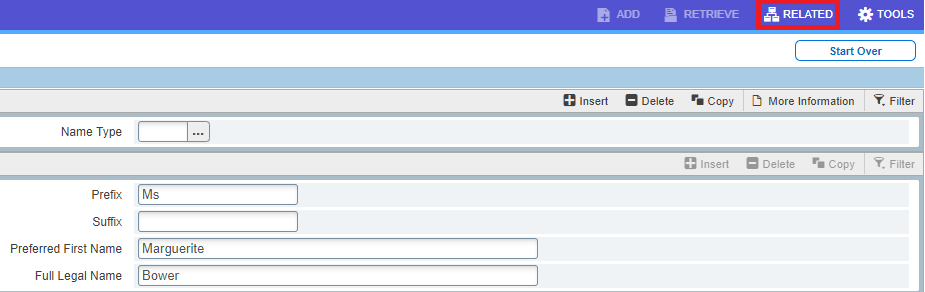
Page up and down buttons are located at the bottom-left of the screen.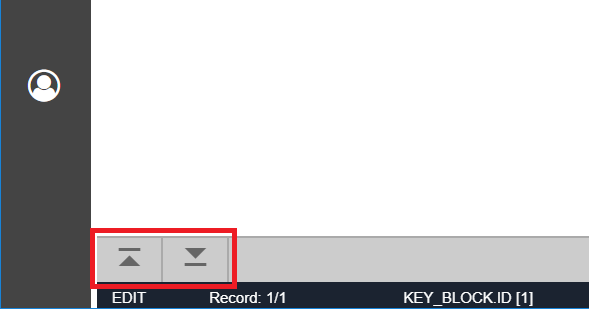
The Start Over button acts like the Rollback button in earlier versions of Legacy Banner.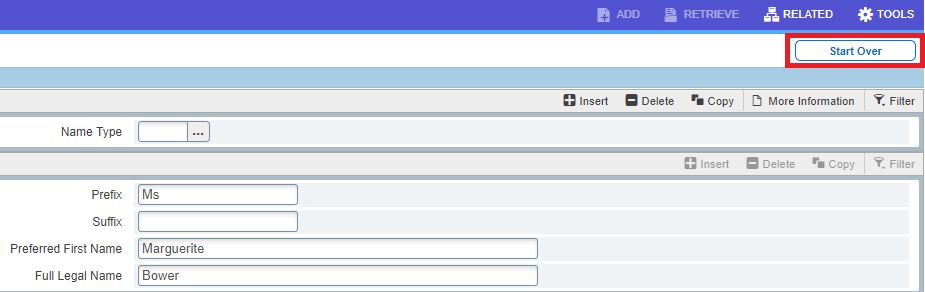
Save the current form by clicking the Save button at the bottom-right.
Close the currently open form by clicking the blue X at the top-left corner.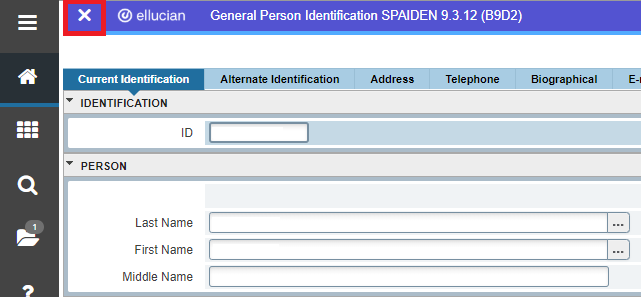
Filter a form (query)
The Filter button appears at the top right of each section or block of the form. Click the Filter button to create a new query.
Click the Go button to execute the filter. Click Clear All to clear it.
Exiting Banner
Always exit Legacy Banner 9 by clicking the Lock icon to log out. Sign out before closing your browser window to help prevent issues caused by page caching in your browser.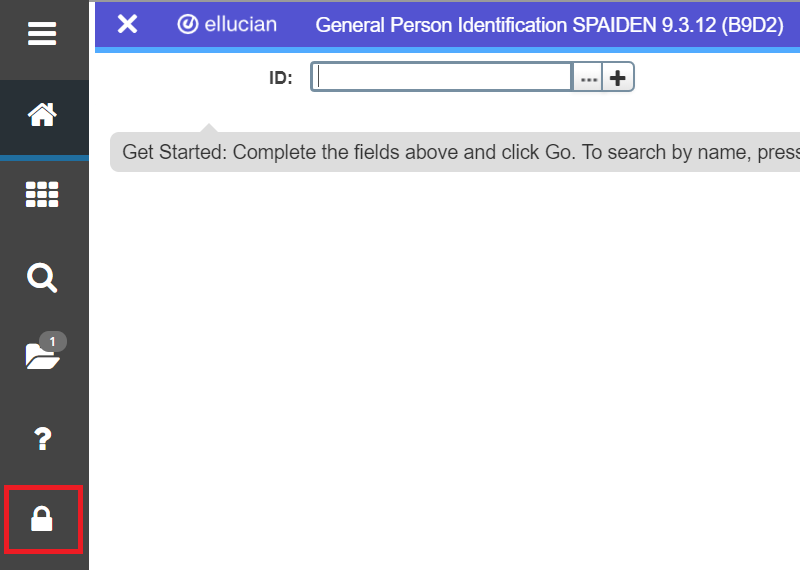
Clearing Browser Cache
If a page or form is not viewing correctly, clearing your browser's cache can help correct the issue.
- With your browser open, press CTRL+Shift+Delete keys together.
- In the Time Range drop down, select All Time.
- Click Clear Data. You may have to wait a few seconds for your browser to complete this process.
Requisition Approval
Approve a requisition in your browser
Enter the menu option for User Approval in the search box, or use the search menu option in the left toolbar.
Your ID should be pre-filled. Click the GO button to continue.
To see the details of the transaction, click DETAIL.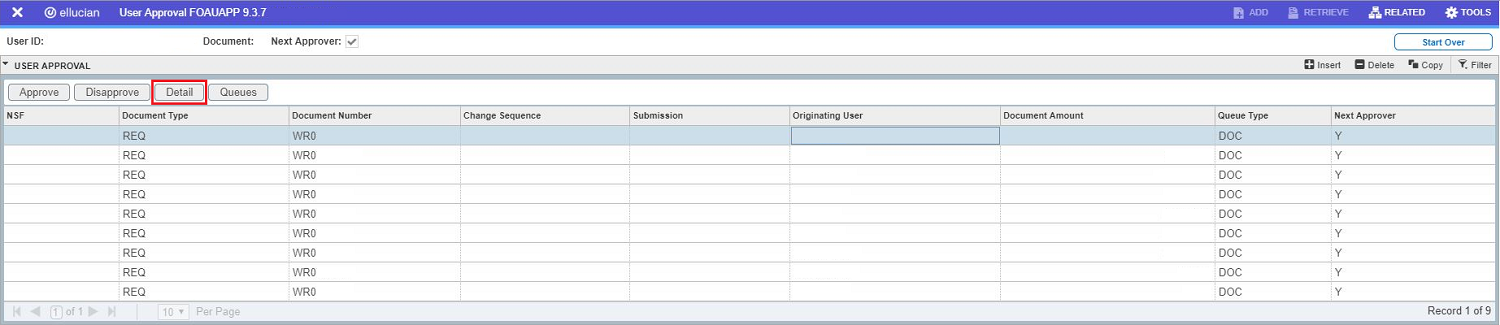
To approve the requisition, click APPROVE.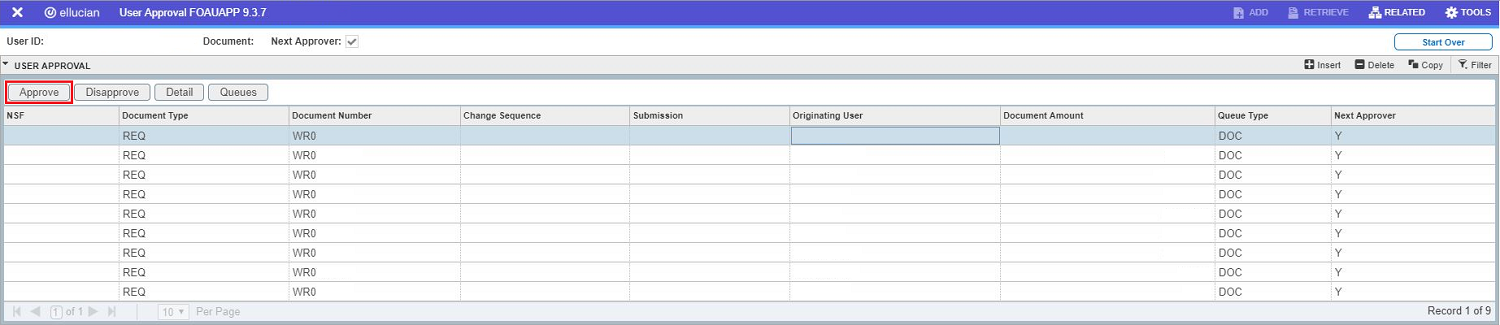
Enter an approval comment and click OK.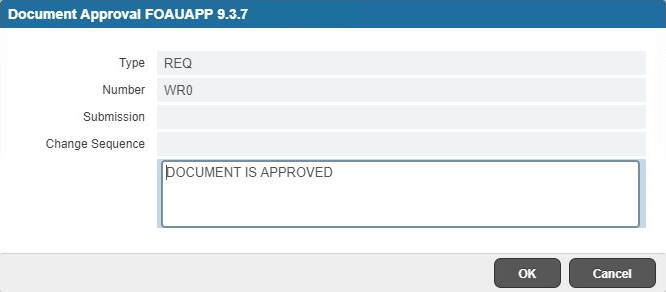
Requisitions should never be disapproved (this functionality does not work). If there is an issue with a requisition, contact the appropriate buyer.
